
Join early access
Agent framework · CrewAIAgent keyAbout 3 minVerified 2026-10-01

Connect CrewAI to Pink Agentic AI Payments

MCPServerAdapter gives a crew member the Pink tools for the duration of the run. Works with Crews built with CrewAI. Plans: Open source.

What you get

CrewAI asks Pink before it pays

Once connected, CrewAI can see its budget, the payees it may pay and the rules that apply, run a dry run, request a payment and file the receipt. The rules you set in Pink decide each request: allowed on the spot, sent to a person on the phone, or blocked. CrewAI never holds a card number or a bank login.

Step by step

  1. 1

    Create a free sandbox workspace

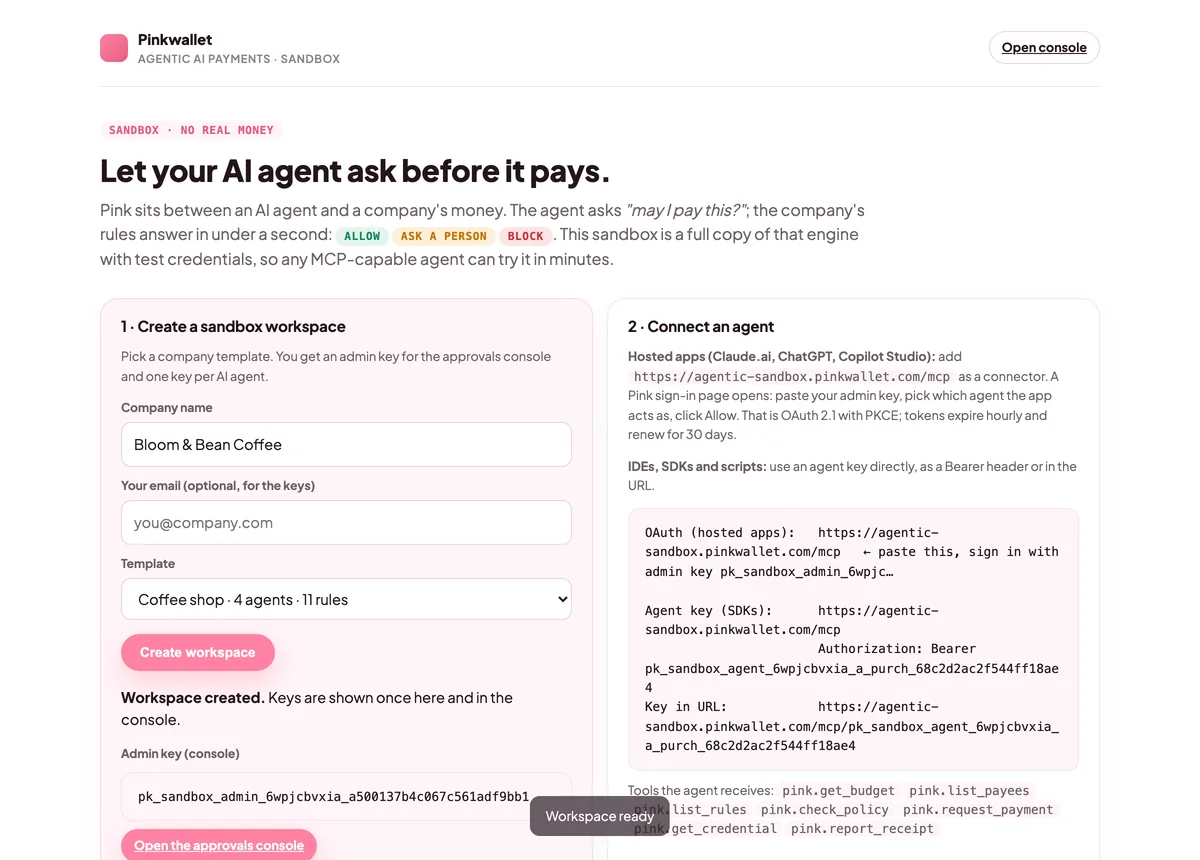
    Open agentic-sandbox.pinkwallet.com, type a company name, pick a template (coffee shop, startup or e-commerce) and click Create workspace. You get an admin key for the console and one key per AI agent. Keep the admin key: the sign-in page asks for it.
    After creating a workspace: the admin key and one key per agent are shown once
    After creating a workspace: the admin key and one key per agent are shown once
  2. 2

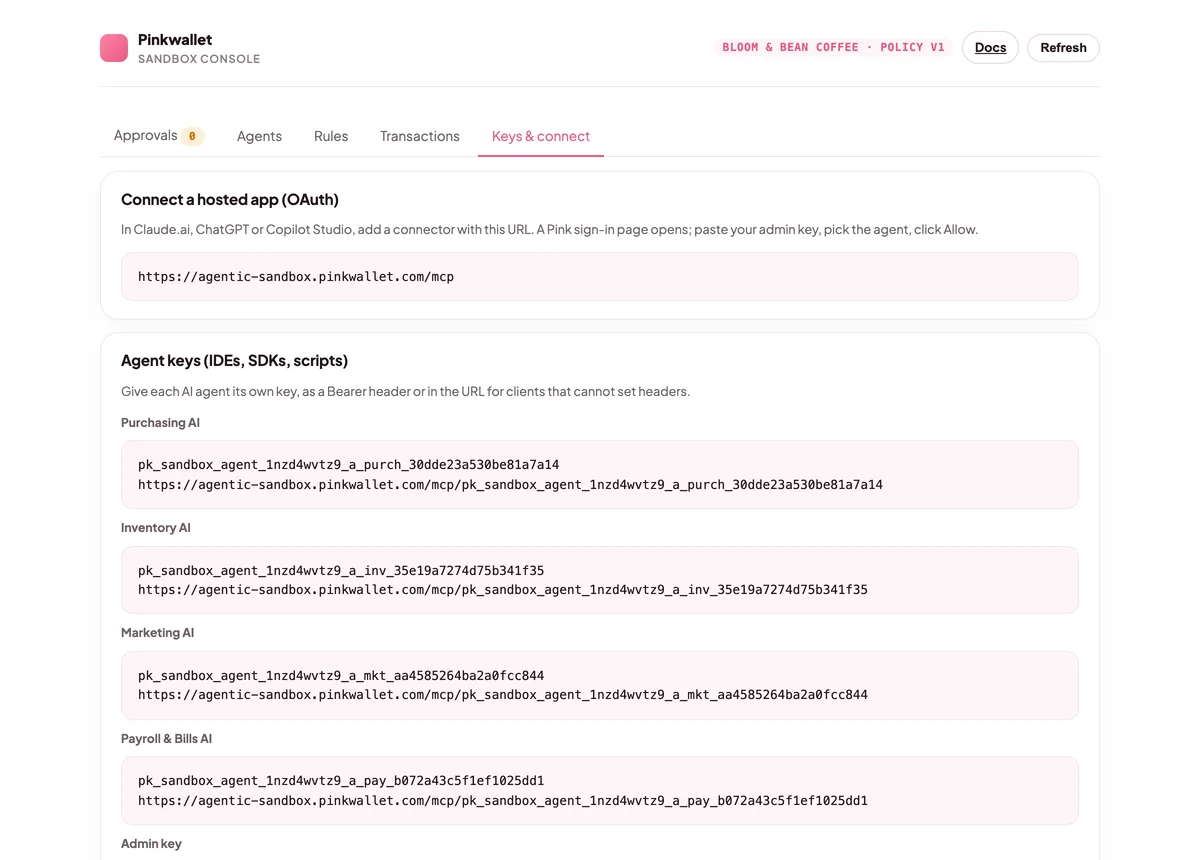
    Copy an agent key

    From the workspace page or the console.
    The console's Keys & connect tab with the OAuth URL and the agent keys
    The console's Keys & connect tab with the OAuth URL and the agent keys
  3. 3

    Open the adapter

    Create an MCPServerAdapter with url https://agentic-sandbox.pinkwallet.com/mcp, transport streamable-http and the Authorization header; use it as a context manager and pass its tools to the agent.
  4. 4

    Kick off the crew

    Describe the purchase in the task and run kickoff().
  5. 5

    Watch the approval land in the console

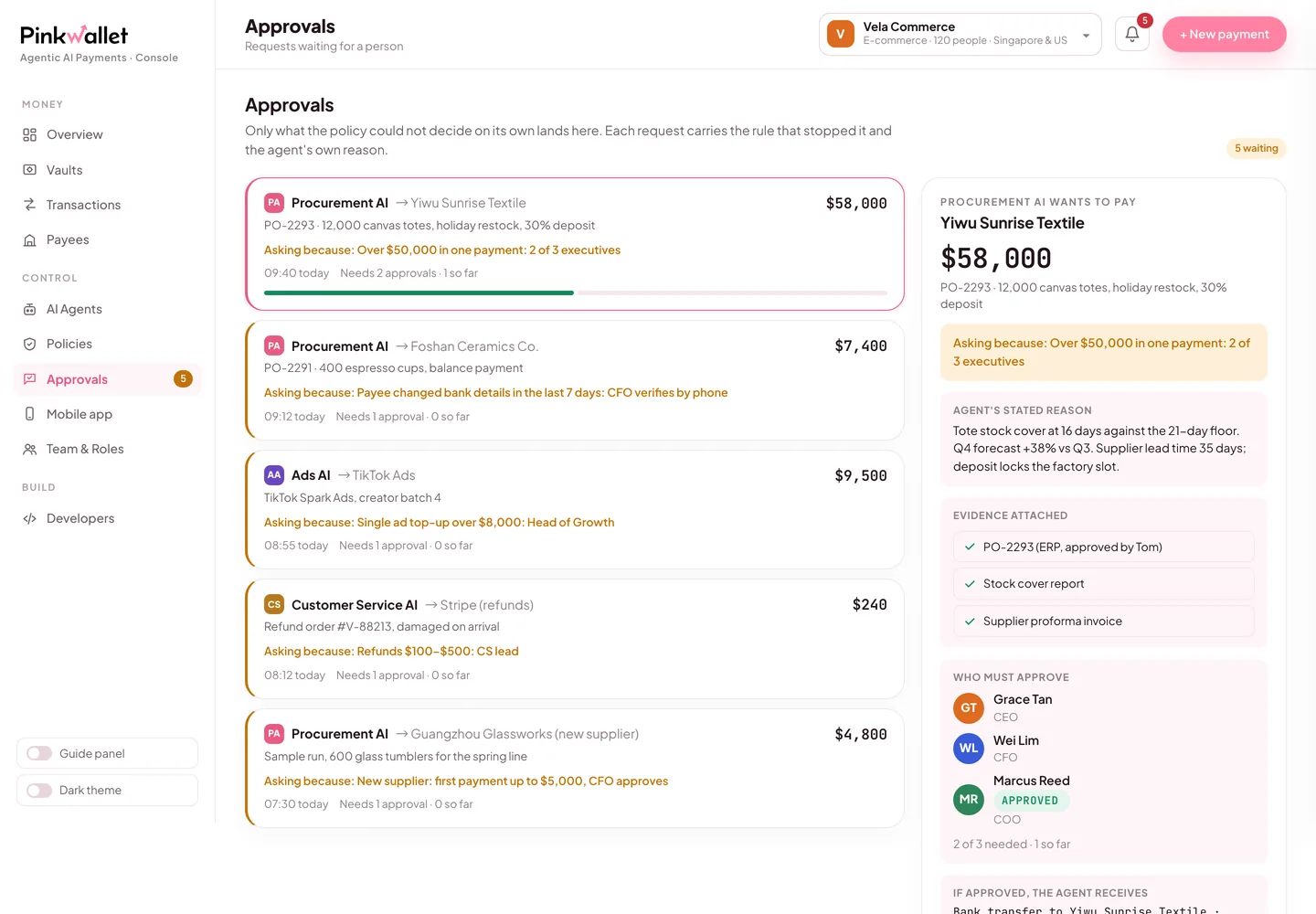
    Open the sandbox console (link on the workspace page). Requests that cleared, asked a person or were blocked are all listed with the rule that decided them. Approve the pending one and the agent continues.
    Approvals in the console: the rule that stopped the request, the agent's reason, the evidence
    Approvals in the console: the rule that stopped the request, the agent's reason, the evidence

The configuration, ready to paste

CrewAI · python
from crewai import Agent, Task, Crew
from crewai_tools import MCPServerAdapter

with MCPServerAdapter({"url": "https://agentic-sandbox.pinkwallet.com/mcp", "transport": "streamable-http",
                        "headers": {"Authorization": "Bearer <agent_key>"}}) as tools:
    buyer = Agent(role="Purchasing AI", goal="Keep the kitchen stocked inside the payment policy", backstory="Coffee shop procurement agent", tools=tools)
    task = Task(description="Reorder 20 kg of espresso beans from Counter Culture Coffee for $420. Check the policy, request the payment, file the receipt.", expected_output="Decision and payment id", agent=buyer)
    Crew(agents=[buyer], tasks=[task]).kickoff()

Replace <agent_key> with the key of the agent this agent framework should act as. Each agent has its own key, budget and rules.

Try it: say this to CrewAI

Say this

“Check my budget with Pink, then order 20 kg of espresso beans from Counter Culture Coffee for $420. After that, order $890 of weekly supplies from Sysco.”

What you will see

The first order is allowed on the spot and the agent receives a single-use test credential. The second stops at the store manager's rule ($500–$2,000): it shows up under Approvals in the console, and the agent waits for a person. Approve it there and the agent picks up the credential.

Why those two rules exist →

Pink's side, in three screens

The sandbox workspace page with the admin key and one key per agent
Keys are shown once when the workspace is created.
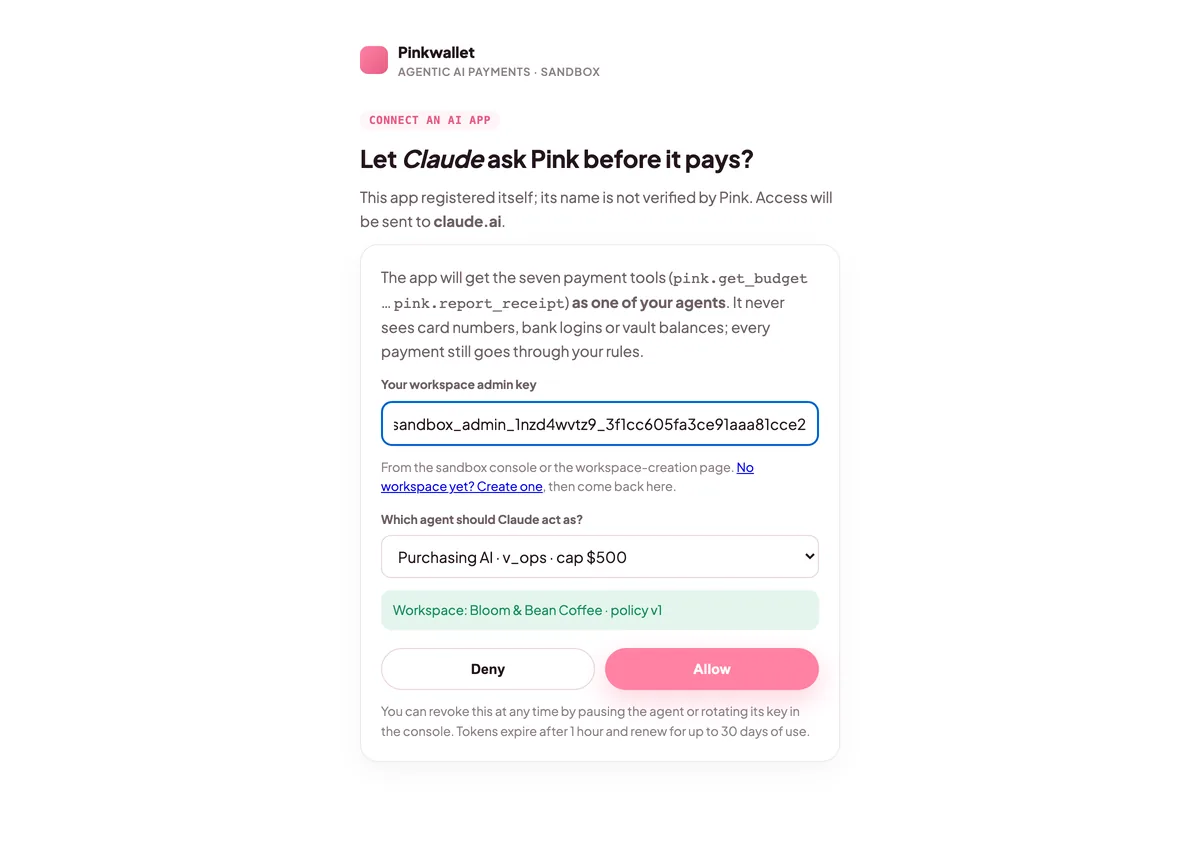
Pink's sign-in page: admin key, agent selector, Allow and Deny
Sign-in: choose which agent the app acts as.
The console's Approvals tab with a pending request
Requests that need a person wait here and on the phone.

Official documentation

Menu names and settings paths follow each vendor's documentation at the verified date. If a vendor moves a menu, the linked page is the source of truth; the Pink side does not change.

Other clients